What Should You Check Before Buying an AMD Radeon RX Card?
AMD Radeon is a family, not a single answer. The exact model’s memory and power requirements—and the game’s FSR support—matter more than the badge alone.
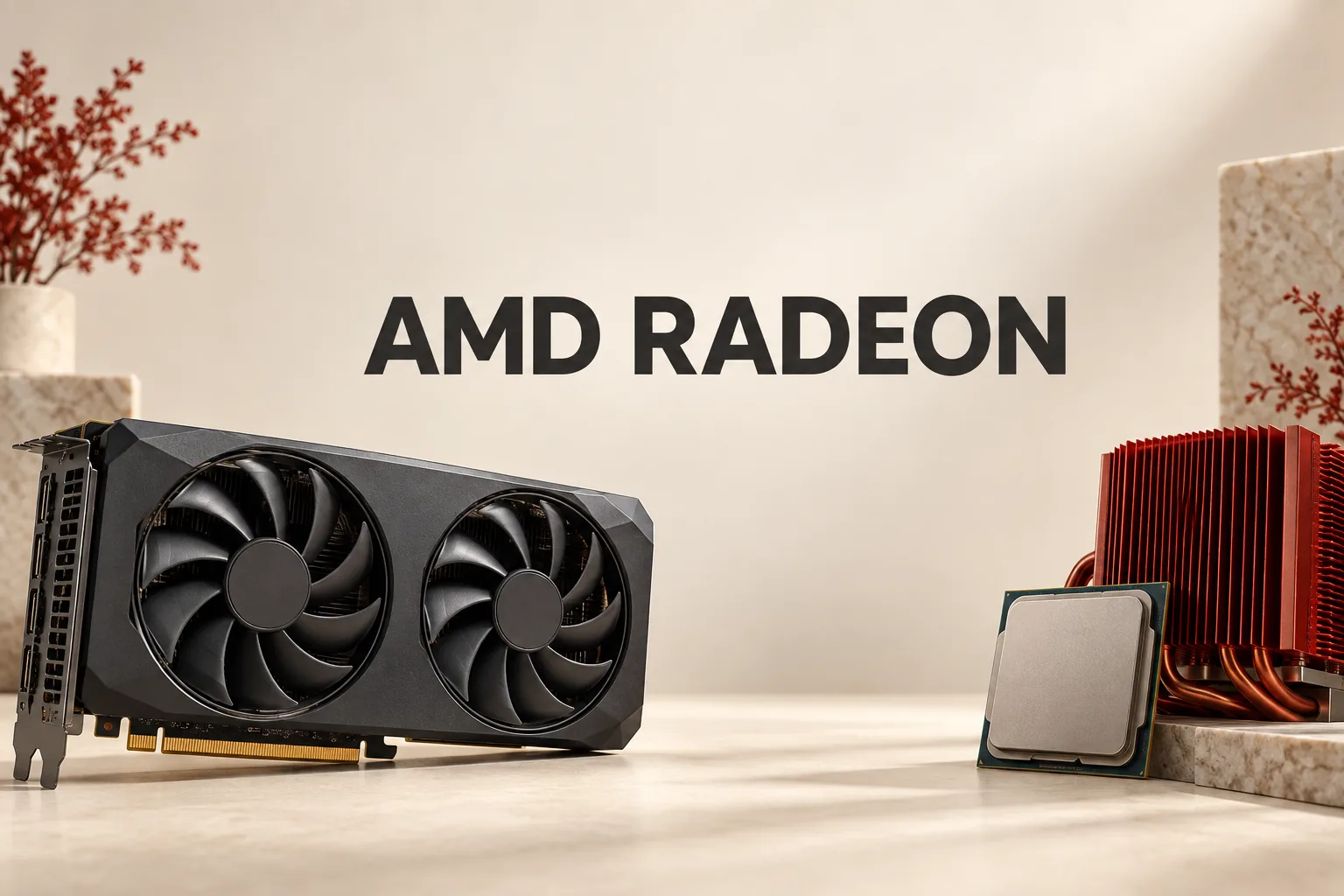
AMD’s current desktop Radeon RX page places the RX 9000 Series in its RDNA 4 generation. That identifies the family, but it does not answer the more useful buying question: will a specific card fit your system and support the features you care about?
The first filter is the exact model, not the Radeon name
AMD’s product pages show why the model number matters. The Radeon RX 9070 XT and Radeon RX 9070 both have 16 GB of GDDR6 memory, but their power requirements are different:
| Model | Memory | Typical board power | Minimum PSU recommendation |
|---|---|---|---|
| Radeon RX 9070 XT | 16 GB GDDR6 | 304 W | 750 W |
| Radeon RX 9070 | 16 GB GDDR6 | 220 W | 650 W |
The figures come from AMD’s RX 9070 XT specifications and RX 9070 specifications. “Typical board power” describes the graphics card’s rated power figure; the PSU recommendation is for the system’s power supply. They should not be treated as the same measurement.
This comparison does not establish an FPS winner. It does establish a practical order of operations: check the exact card’s power requirement before treating the model name as a shorthand for what your PC can accommodate. The shared 16 GB capacity also shows why memory alone is not enough to distinguish two cards.
FSR support is a compatibility question, not a badge
AMD’s FSR technology page describes FSR “Redstone” as a group of technologies: FSR Upscaling, FSR Frame Generation, Ray Regeneration, and Radiance Caching. That wording matters because “FSR support” is not one uniform feature.
AMD’s separate supported-games list identifies games that support one or more of these technologies. In other words, a Radeon purchase should be checked against the specific game and the specific FSR feature, rather than against the word “FSR” alone.
This is the difference between a useful compatibility check and a marketing shortcut. A card can belong to the right Radeon generation while a particular game still requires its own listed integration or conditions.
A more reliable order for evaluating a card
- Start with the game or feature you actually care about. Check AMD’s supported-games list and note which FSR technology is listed.
- Open the exact GPU model page. Record memory, typical board power, and AMD’s minimum PSU recommendation separately.
- Check the driver path after choosing the model. AMD’s Drivers and Support page provides both an auto-detect option and manual product selection, so use the exact Radeon model rather than a broad family label.
That sequence narrows the decision using constraints AMD actually documents. It also avoids turning a shared brand name, a memory figure, or a generic FSR claim into an unsupported promise about performance.
Radeon is a family name; a sensible purchase decision is a match between the exact model, the system’s power envelope, and the exact game feature you want to use. AMD’s official pages support that narrower conclusion without making one universal “best” choice.
Sources
Related notes
- How to Choose an AMD Radeon Card: Check Memory, Power, and Software First
- AMD Radeon: How to Choose Between RX 9070 XT, RX 9070, and RX 9060 XT
- AMD Radeon Explained: What You Actually Need to Check
- AMD Radeon RX 9000: How to Read the 16GB and 8GB Choices
- AMD Radeon: Which Driver and Software Path Fits Your PC?